Struggling to keep up with comments and direct messages across multiple platforms? The Social Inbox in Cloud Campaign is designed to help you centralize, manage, assign, and respond to social interactions all in one place—turning your engagement efforts into an organized, collaborative task list.
What Is the Social Inbox?
The Social Inbox is a central hub within the Monitor section of Cloud Campaign. It pulls in all comments and direct messages across your connected social accounts, allowing your team to:
- Reply to messages and comments
- Assign responses to team members
- Leave internal comments
- Delete or hide comments
- Mark items as completed
Think of it as a shared to-do list for managing your brand’s online conversations.
How to Access the Social Inbox
- Navigate to the left-hand menu
- Under the Monitor section, click Social Inbox
Filtering Messages and Comments
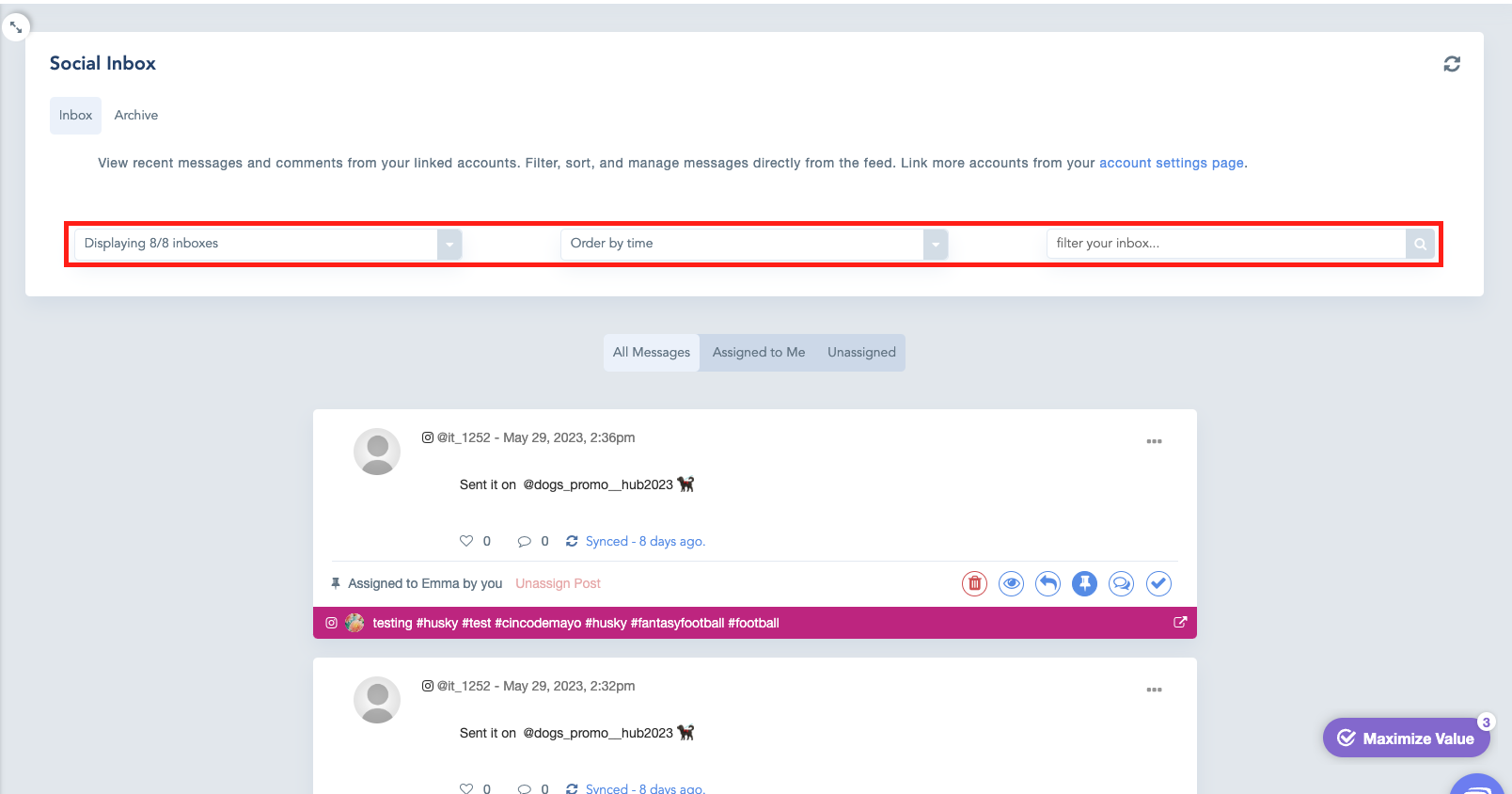
At the top of the Social Inbox, you’ll find filters to narrow down the items shown:
- Social Account Filter: Choose which connected account you want to view.
- Engagement Type Filter: Sort by messages or comments.
- Time Filter: Filter interactions by time range.
Message View Options
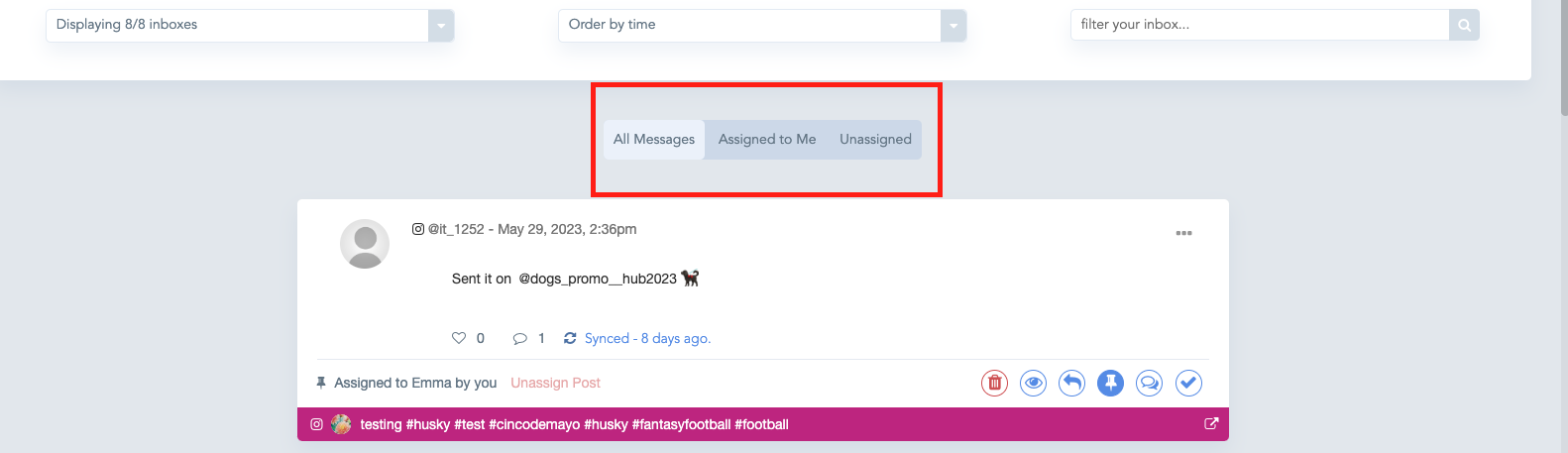
You can also toggle between three inbox views:
- All Messages – View every message or comment
- Assigned to Me – See only those items assigned to you
- Unassigned – See items that haven’t been assigned to anyone yet
Actions You Can Take in the Social Inbox
When viewing a message or comment, you can:
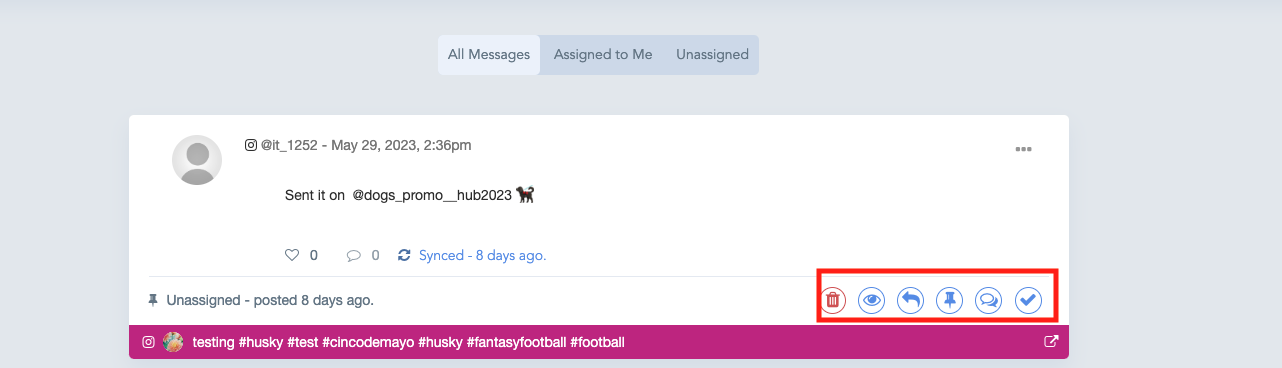
| Icon | Action |
|---|---|
| Trash Can | Delete the comment |
| Eye | Hide the comment from the public |
| Arrow | Reply to the comment or DM |
| Pin | Assign the item to another team member |
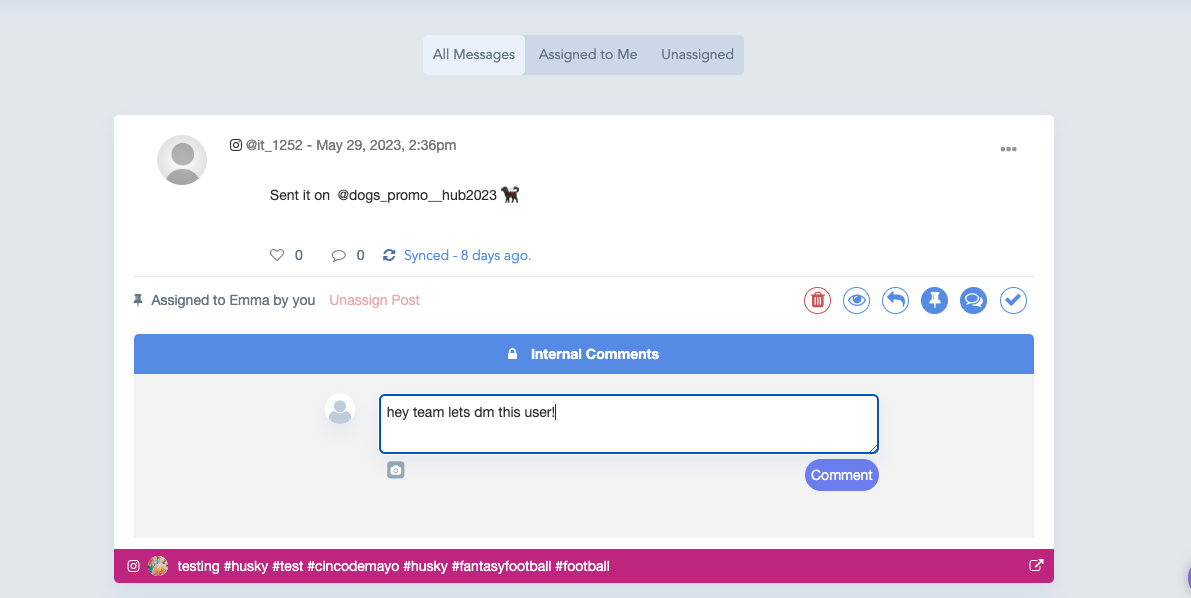
| Speech Bubble | Leave an internal comment for your team |
| Checkmark | Mark as complete once resolved |
Assigning Messages or Comments
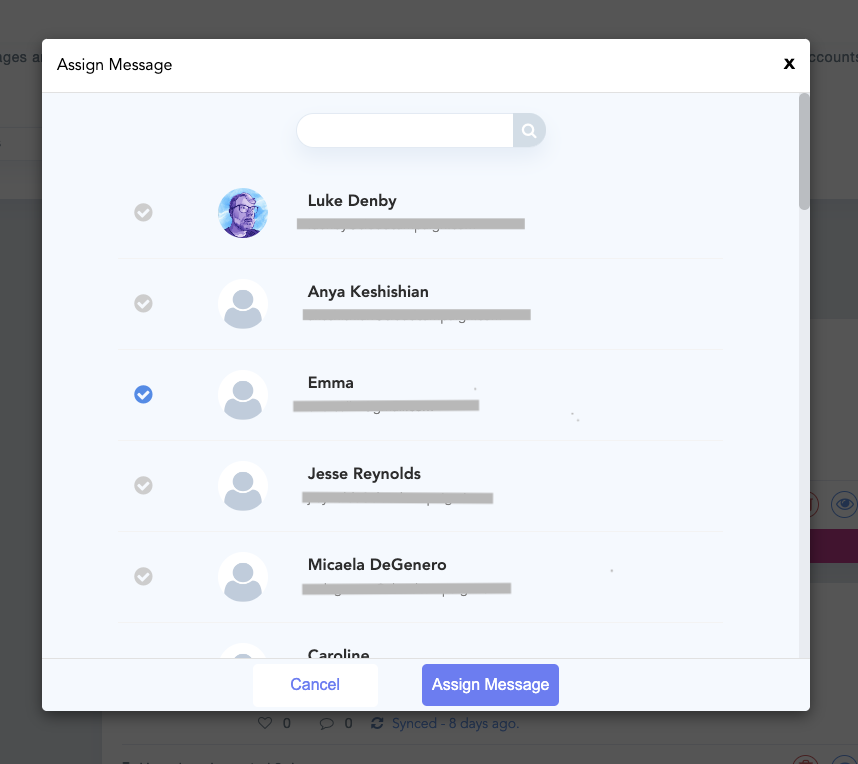
- Click the pin icon to assign the message to a team member.
- Use the checkbox next to their name to confirm the assignment.
- Assigned users are now responsible for replying to that message.
Collaborating Internally
- Click the speech bubble to leave internal notes.
- All team members within the workspace can view and reply to these comments.
Replying to a Comment or Message
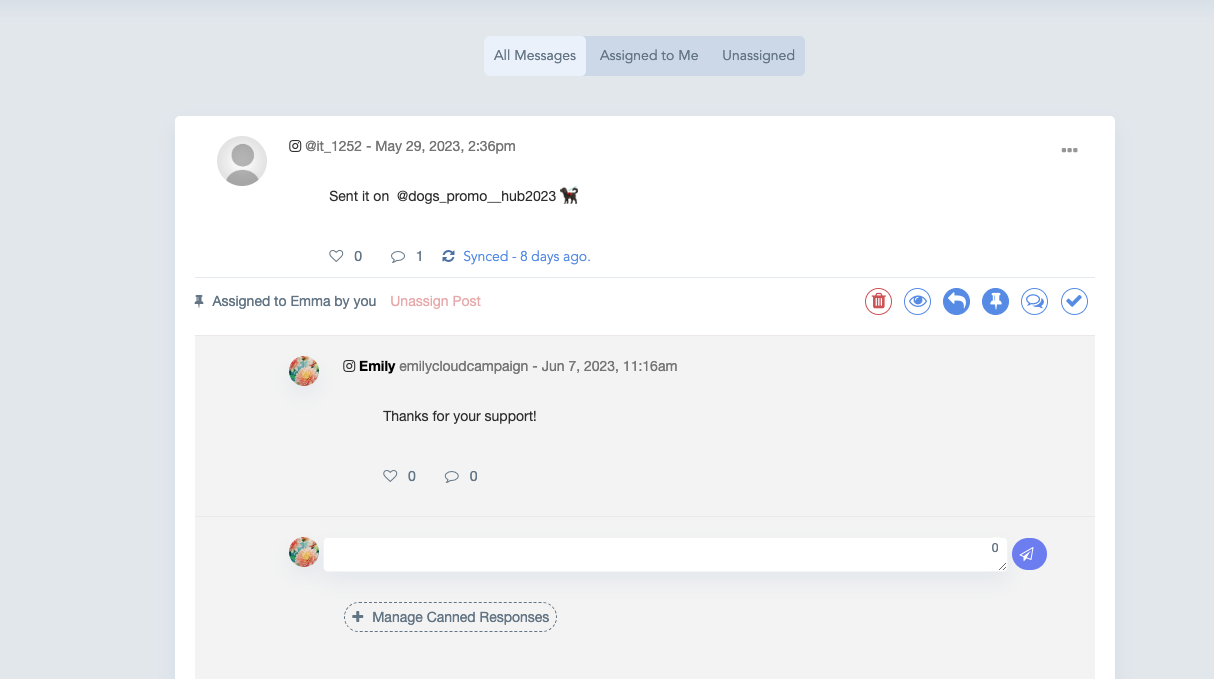
- Click the arrow icon to type your response.
- Once you're ready, click the paper airplane icon to send your reply.
- Your response will appear directly under the original message.
Using AI to Generate Responses
The Social Inbox now includes AI-powered replies based on your Brand Profile:
When replying to a comment, click Generate a Response.
The AI will use the information you’ve set in your Brand Profile (brand voice, services, industry, target audience) to draft a suggested reply.
The generated response will appear directly in the text box.
You can edit or customize the response before sending it.
This feature ensures your replies feel on-brand, consistent, and efficient.
Managing Canned Responses
For frequently asked questions or repeat messages, you can now create and store canned responses:
Click Manage Canned Responses in the Social Inbox.
A pop-up will appear with options to:
Add the name of the response (e.g., “Store Hours,” “Return Policy”).
Enter the answer you’d like to generate when selected.
Save your canned responses for quick access in future conversations.
Canned responses help your team reply faster while keeping answers consistent across your brand.
By using the Social Inbox, your team can stay on top of engagement, reduce response times, and work together efficiently to maintain a strong social media presence.